Description
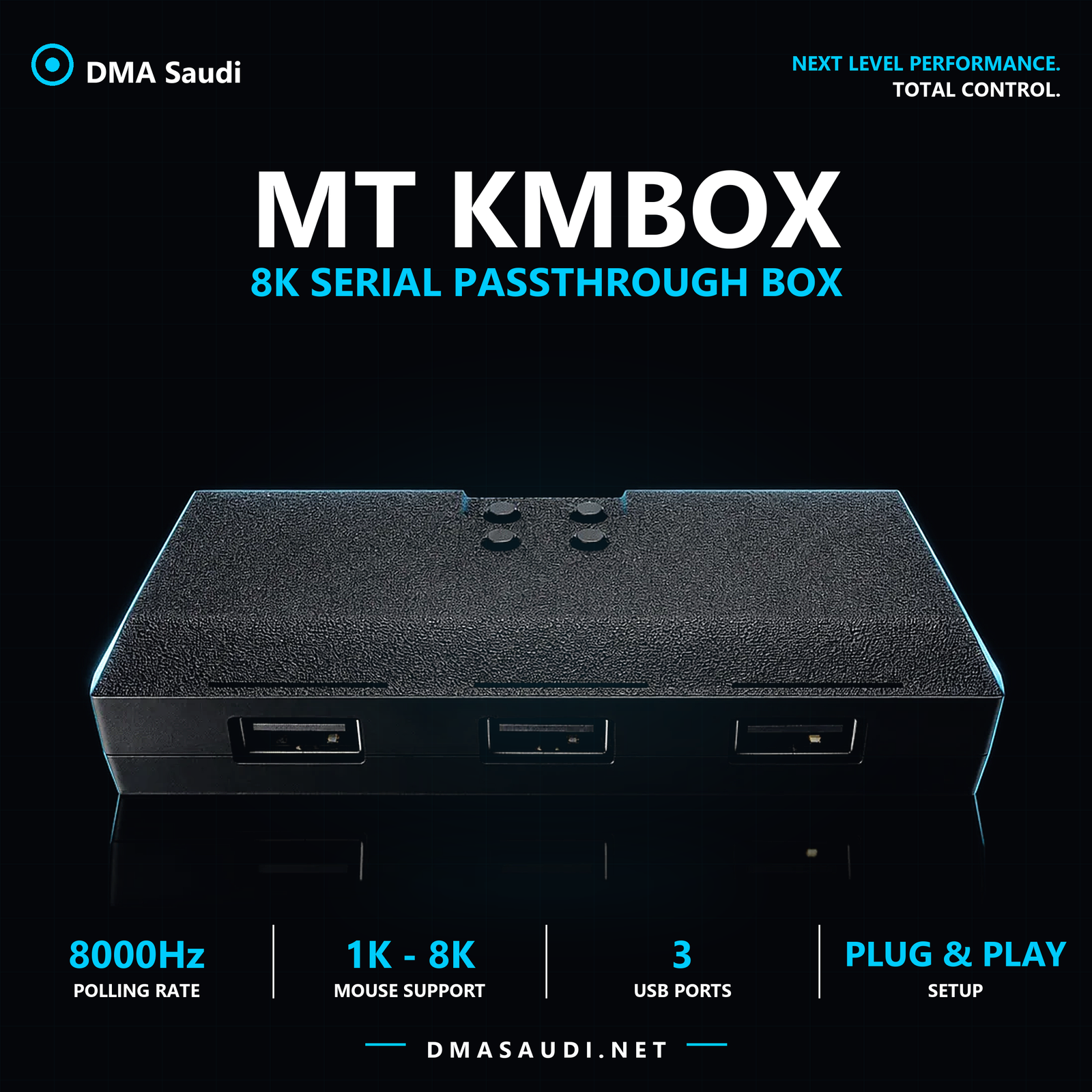
The MT KMBOX box is a serial passthrough device with three USB ports. It passes the mouse signal from your main PC to the second PC in dual-PC DMA setups, and supports high polling rates of up to 8000Hz. It works with the KMNet andMakcu andKMBox as well as B+ / BPROprotocols, and keeps your mouse with all its features and its original software.
Why MT KMBOX?
Most passthrough boxes force you to give something up — either mouse response speed, the manufacturer's software, or how the mouse appears to the system. The MT KMBOX is designed so that the system recognizes the mouse more naturally, so your experience stays as if the mouse were plugged in directly, and you keep all its features.
And if you're building a two-PC DMA setup, the passthrough happens at the hardware level: set it up once, then connect directly in the same order every time with no reconfiguring.
Specifications
- Brand: MT
- Type: 8K serial passthrough box — Serial Passthrough Box
- Polling rate: Up to 8000Hz
- Supported mice: 1K, 2K, 4K and 8K
- Protocols: KMNet · Makcu · KMBox · B+ / BPRO
- Baud rate: 115200
- Ports: 3× USB — mouse, serial port, controlled PC
- Buttons: 4 buttons — boot1, boot2, rst1 and rst2
- Driver: CH340 / CH341SER serial port driver installed on the second PC
- Housing: Black plastic with a textured anti-slip finish
Mouse and software compatibility
The box works with mice at any polling rate — from 1K up to 8K — without cutting your mouse's speed or forcing you to lower it.
Most importantly: manufacturer software keeps working. You can use Logitech or Razer software normally, and your settings stay available as they are:
- Sensitivity DPI and profiles
- Lighting RGB and its effects
- Macros and button mapping
- Onboard memory for the mouse (Onboard Memory)
Supported protocols
The box supports more than one control protocol, so you can run it with different setups and tools without changing hardware:
- KMNet — control over the network
- Makcu — the common protocol in DMA setups
- KMBox — compatibility with KMBox tools
- B+ / BPRO — the box's native serial passthrough protocol
The three ports
- Mouse port: connects to your wired mouse
- Serial port: connects to the second PC with a USB to USB cable
- Controlled port: connects to the main PC
Advanced options
Beyond plug-and-play use, the box offers extra options to adjust some network settings andserial port settings — useful if you run it over KMNet or need it to match a specific setup of yours.
How to set it up
- Install the serial port driver on the second PC as administrator
- Find the COM port number in Device Manager
- Connect in this order: the mouse, then the controlled port, and finally the serial port
- Wait 10 seconds without moving the mouse, then press rst1 and rst2 together and wait 5 seconds
- In the software: enter only the port number and set the baud rate to 115200
After the first successful setup, just connect in the same order next time, with no waiting or button presses.
What's in the box
- MT KMBOX box
- Serial port driver and configuration tool (delivered digitally)
- Arabic installation and setup guide (PDF)
MT KMBOX FAQ
Does it really support an 8K mouse?
Yes, the box supports polling rates up to 8000 Hz and works with mice at 1K, 2K, 4K and 8K.
Does Logitech or Razer software keep working?
Yes. You can use the manufacturer's software as usual, and your DPI, lighting, macro and onboard memory settings stay available.
Which protocols does it support?
It supports KMNet, Makcu and KMBox as well as B+ / BPRO, so you can run it with different tools and setups on the same hardware.
Do I need two PCs to use it?
Yes, the box is built for dual-PC DMA setups — a main controlling PC and a controlled second PC.
How do I find the serial port number?
In Device Manager on the second PC, under Ports (COM & LPT), you'll find the device listed as USB-SERIAL CH340 with the port number in parentheses. In the software, enter only the number without the word COM, and set the baud rate to 115200.
My COM port doesn't show up. What should I do?
Install the serial port driver manually as administrator, then unplug the serial port and plug it back in.
The mouse doesn't move after connecting. Why?
Press rst1 and rst2 together again, wait 10 seconds, then try moving the mouse. If the problem continues, the USB to USB cable is the most likely cause — try another cable or a different USB port on the main PC.
Does it need resetting after restarting the PC?
If the mouse stops after a restart, press rst1 and rst2 together once, wait a few seconds, and it will work again.
Related products and articles
- makcu – pro mouse emulator
- Captain DMA 75T card
- Mini PC for a dual-PC DMA setup
- All DMA accessories
- Complete DMA kits
- Article: KMBox vs Makcu vs KMNet
- Guide: How to set up DMA step by step
- Guide: what is DMA and how does it improve your game?
Order the MT KMBOX now from DMA Saudi — 8000 Hz mouse passthrough while your mouse software and settings stay as they are.


Reviews
There are no reviews yet.